Qanas for Chrome
Save companies and decision makers from LinkedIn and company websites to Qanas in one click, with a side panel on LinkedIn that picks the most senior person as your contact.
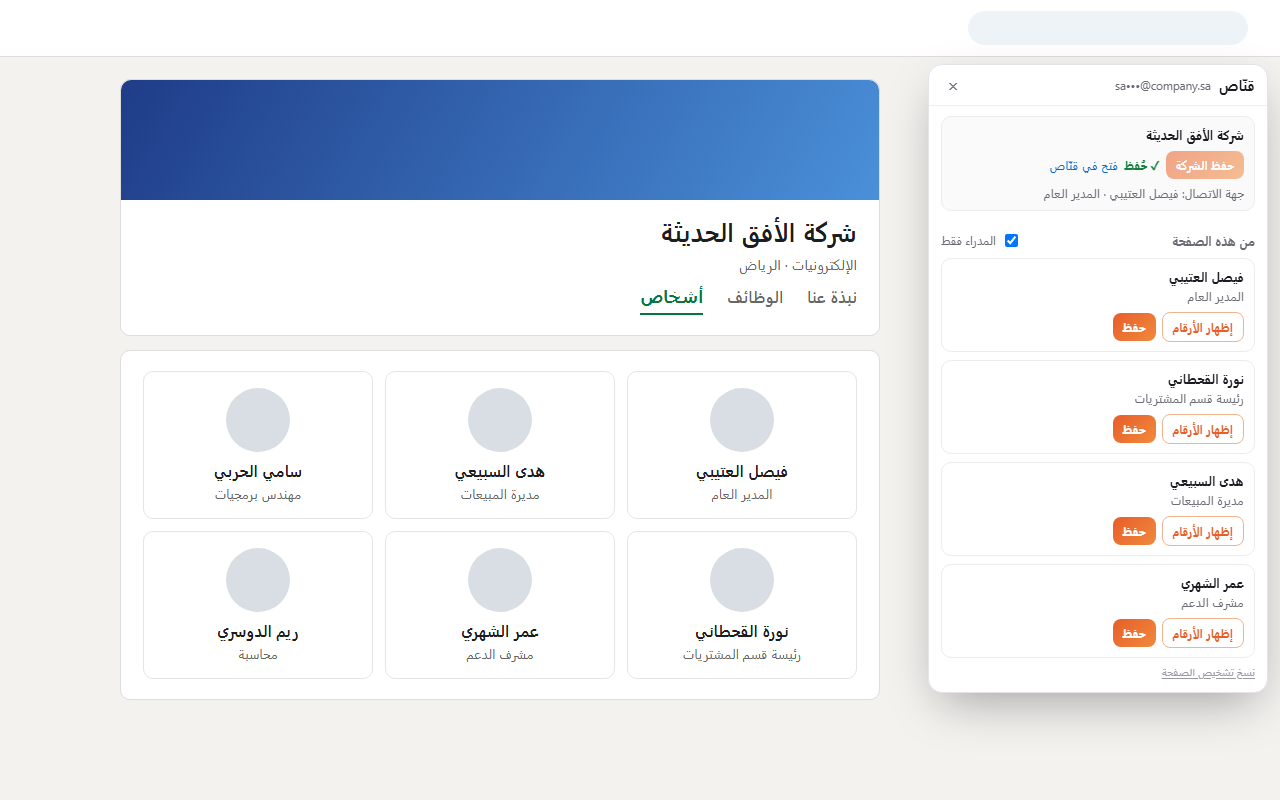
A side panel on LinkedIn
It sits beside company pages, search results and profiles, and lists the company and the employees shown.
The right contact
When you save a company, Qanas picks the most senior of its employees: the owner, CEO or general manager first.
From any company website
Click it on a company's website to pick up its name, published phone and email, and LinkedIn page.
No duplicates
Qanas knows when the company is already in your account and fills in what is missing instead of making a copy.
How to use it
From installing it to a decision maker saved in your account, in minutes.
The steps in detail
1 Install and connect
- Press Add to Chrome on this page, then Add to Chrome in the Chrome Web Store.
- Pin Qanas to the Chrome toolbar: click the puzzle-piece icon, then the pin next to Qanas.
- Open LinkedIn and the Qanas panel shows beside the page. Press Connect Qanas account and approve on the page that opens.
2 Find the decision makers
- Open the company's page on LinkedIn, or search for its name.
- Press Find managers in the panel: it opens the company's People tab on LinkedIn, and the panel shows its managers.
- The panel lists the most senior first. Scroll the page for more, or untick Managers only to see everyone.
3 Contact info and saving
- Press Show numbers on anyone: their phone and email appear in the panel, and credits are used only when numbers are found.
- Find decision makers finds the company's managers, even those LinkedIn hides the names of.
- Press Save on the person or the company. Saving the company makes the most senior person its contact, and saving again makes no copy.
4 From any company website
- Open the company's website and click the Qanas icon in the Chrome toolbar.
- Check the name, phone, email and LinkedIn page it picked up, edit anything, then press Save.
5 Where your saves go
- In Qanas, under Projects, in the Chrome extension project. Export it or send it to your system like any search result.
- The Open in Qanas link after each save takes you straight there.
The extension never browses by itself, and sends nothing but what you press Save on, to your own account only. What the extension reads and sends